
TL;DR — Quick answer
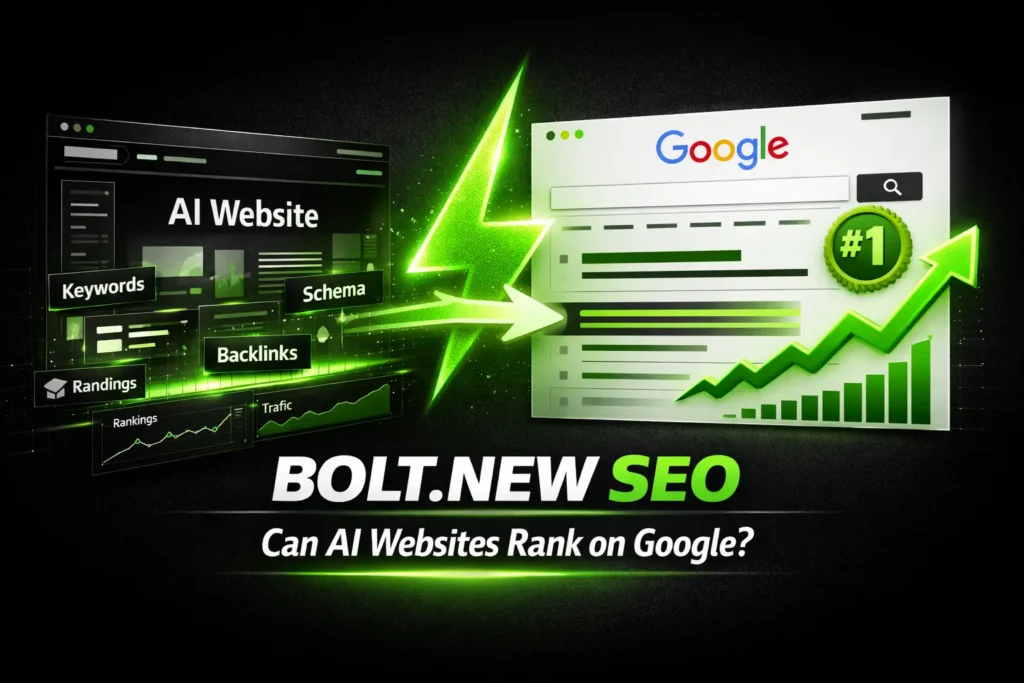
Your Bolt.new site is invisible to Google because of 7 default failures:
- No sitemap submitted to Google Search Console
- No robots.txt allowing crawlers
- Client-side rendering — crawler-visible HTML must be tested
- Missing or duplicate meta tags
- Zero schema markup
- Failed Core Web Vitals (LCP typically 4–6 seconds)
- No canonical tags — duplicate content signals
Every one of these is fixable without rebuilding your site. This guide shows you exactly how.
You launched your Bolt.new site. It looks great. The design is clean, the features work, and you shared it on Twitter to a warm response from the building-in-public community.
Then you checked Google Search Console and found that important routes were missing, excluded or receiving no impressions.
Zero clicks. Zero impressions. Your site doesn’t exist as far as Google is concerned.
You’re not alone. After auditing over 40 AI-built websites, I’ve found that Bolt.new sites share the exact same set of SEO failures — every single time. These aren’t random issues. They’re predictable consequences of how Bolt builds React applications, and every one of them can be fixed.
This guide covers each failure in detail, explains why it happens specifically with Bolt.new, and gives you the exact fix to apply.
Why Bolt.new Sites Have Structural SEO Problems
Before diving into specific fixes, it helps to understand the root cause.
Bolt.new generates React single-page applications (SPAs). React is a JavaScript framework — meaning your site’s content is built in the browser using JavaScript, not served as pre-rendered HTML from a server.
This creates a fundamental problem with search engines. When Googlebot visits a traditional website, it receives a complete HTML document with all content immediately visible. When Googlebot visits a React SPA, it receives something like this:
<!DOCTYPE html>
<html>
  <head>
    <title>My App</title>
  </head>
  <body>
    <div id="root"></div>
    <script src="/assets/index-abc123.js"></script>
  </body>
</html>
There is no content. Just an empty div and a JavaScript file. Googlebot must execute the JavaScript to render the actual page — and Google’s JavaScript rendering is limited, delayed, and inconsistent.
The result: your entire site is effectively invisible to Google until this is fixed.
Now let’s fix it, issue by issue.
Issue 1: No Sitemap — Google Doesn’t Know Your Pages Exist
What the problem is: Bolt.new does not generate a sitemap.xml file. A sitemap is the document that tells Google every URL on your site and signals which pages are most important. Without it, Google must discover your pages through links alone — which, for a new site with no inbound links, means Google may never find them.
How to diagnose it: Go to yourdomain.com/sitemap.xml. If you see a 404 or blank page, you have no sitemap.
How to fix it:
If you’re hosting on Vercel (the most common Bolt.new deployment target):
Create a file called sitemap.xml in your project’s public/ folder:
<?xml version="1.0" encoding="UTF-8"?>
<urlset xmlns="http://www.sitemaps.org/schemas/sitemap/0.9">
  <url>
    <loc>https://yourdomain.com/</loc>
    <lastmod>2025-06-09</lastmod>
    <changefreq>weekly</changefreq>
    <priority>1.0</priority>
  </url>
  <url>
    <loc>https://yourdomain.com/about</loc>
    <lastmod>2025-06-09</lastmod>
    <changefreq>monthly</changefreq>
    <priority>0.8</priority>
  </url>
  <url>
    <loc>https://yourdomain.com/contact</loc>
    <lastmod>2025-06-09</lastmod>
    <changefreq>monthly</changefreq>
    <priority>0.8</priority>
  </url>
  <!-- Add every page on your site -->
</urlset>
After deploying, go to Google Search Console → Sitemaps → Submit your sitemap URL (yourdomain.com/sitemap.xml).
For sites with many pages, consider using vite-plugin-sitemap which generates the sitemap automatically on build.
Time to fix: 30 minutes.
Issue 2: No robots.txt — Ambiguous Crawl Signals
What the problem is: Without a robots.txt file, Google doesn’t know your crawl rules. More importantly, AI crawlers (GPTBot, ClaudeBot, PerplexityBot) look for explicit permission signals. A missing robots.txt means you’re not signalling to these crawlers that your content is available for indexing and citation.
How to diagnose it: Visit yourdomain.com/robots.txt. A missing file or 404 confirms the issue.
How to fix it: Create robots.txt in your project’s public/ folder:
User-agent: *
Allow: /
Disallow: /api/
Disallow: /admin/

# Explicitly allow AI crawlers for AEO/citation indexing
User-agent: GPTBot
Allow: /

User-agent: ClaudeBot
Allow: /

User-agent: PerplexityBot
Allow: /

User-agent: Google-Extended
Allow: /

Sitemap: https://yourdomain.com/sitemap.xml
The AI crawler allowlist is not standard practice — most guides don’t mention it. Including it explicitly signals to ChatGPT, Perplexity, and Claude’s training crawlers that your content is available for citation. This is the foundation of AEO.
Time to fix: 10 minutes.
Issue 3: Client-Side Rendering — Verify What Crawlers Receive
What the problem is: This is the most critical issue and the root cause of Bolt.new sites being invisible. When Googlebot visits your site, it sees an empty HTML shell. The actual content — your headlines, your copy, your product descriptions — only exists after JavaScript executes.
Google does eventually render JavaScript, but with significant limitations:
- It runs in a budget-constrained environment
- It may take days or weeks to process your pages
- Complex JavaScript interactions may never render correctly
- Dynamic content populated from APIs rarely gets indexed
How to diagnose it: Go to Google Search Console → URL Inspection → Enter your homepage URL → Click “Test Live URL” → Switch between the rendered screenshot and the raw HTML. If the raw HTML is mostly empty, you have this problem.
Fix Option A: Prerendering (fastest, no rebuild required)
Prerendering services generate static HTML snapshots of your JavaScript pages and serve them to crawlers. Your users still get the full React experience; Googlebot gets clean HTML.
The easiest implementation for Bolt.new + Vercel is using a prerender.io middleware or Vercel Edge Functions.
Add to your vercel.json:
{
  "rewrites": [
    {
      "source": "/((?!api).*)",
      "destination": "/index.html"
    }
  ]
}
Then consider deploying with Prerender.io (they have a free tier for small sites).
Fix Option B: Switch to SSR with Vite SSR or Astro (best long-term fix)
If you’re comfortable making a deeper change, migrating your Bolt.new output to use Astro as a framework wrapper gives you server-side rendering out of the box. Your React components can be kept exactly as-is; Astro wraps them in SSR.
This is the most thorough fix and results in PageSpeed scores 30–40 points higher as a bonus.
Fix Option C: Static generation
For content-heavy pages (about, services, blog), export them as static HTML and serve as traditional pages. This works well for sites where the marketing pages are separate from the application.
Time to fix: Option A = 2–4 hours. Option B = 1–2 days. Option C = varies.
Issue 4: Missing or Broken Meta Tags
What the problem is: Every page on your site needs a unique title tag, meta description, and Open Graph tags. Bolt.new generates a single index.html with one set of meta tags — meaning every page on your site has identical metadata.
Identical meta tags across all pages tell Google your site has no meaningful page differentiation. It also means every social share of any page shows the same title and description.
How to diagnose it: Visit multiple pages on your site, right-click → View Page Source, and check the <head> section. If the title is identical across different pages, this is your problem.
How to fix it: Install react-helmet-async in your Bolt.new project:
npm install react-helmet-asyncWrap your app in the HelmetProvider in main.jsx:
import { HelmetProvider } from 'react-helmet-async';

ReactDOM.createRoot(document.getElementById('root')).render(
  <HelmetProvider>
    <App />
  </HelmetProvider>
);
Then add unique meta tags to each page component:
import { Helmet } from 'react-helmet-async';

function AboutPage() {
  return (
    <>
      <Helmet>
        <title>About Us — [Your Brand]</title>
        <meta name="description" content="[Unique description for this page, 150–160 characters]" />
        <meta property="og:title" content="About Us — [Your Brand]" />
        <meta property="og:description" content="[Same as meta description]" />
        <meta property="og:url" content="https://yourdomain.com/about" />
        <meta property="og:type" content="website" />
        <link rel="canonical" href="https://yourdomain.com/about" />
      </Helmet>
      {/* Rest of your page */}
    </>
  );
}
Do this for every page in your application. Each page needs a completely unique title and description — never copy-paste them.
Time to fix: 2–3 hours depending on the number of pages.
Issue 5: Zero Schema Markup — Invisible to AI Answers
What the problem is: Valid structured data can help search engines understand eligible page entities and features, but it neither guarantees rich results nor AI citations. The markup must match visible content and the relevant schema requirements.
Structured data is not a visibility guarantee. Add only schema that accurately represents visible page content, then validate it; crawlable content and clear page meaning remain the foundation.
How to fix it: Add JSON-LD schema to your index.html for global schema, and use React Helmet for page-specific schema.
In your index.html, add this in the <head>:
<script type="application/ld+json">
{
  "@context": "https://schema.org",
  "@type": "Organization",
  "name": "Your Company Name",
  "url": "https://yourdomain.com",
  "logo": "https://yourdomain.com/logo.png",
  "description": "What your company does in one clear sentence.",
  "email": "hello@yourdomain.com",
  "sameAs": [
    "https://twitter.com/yourhandle",
    "https://linkedin.com/company/yourcompany"
  ]
}
</script>
For individual pages, use React Helmet to inject page-specific schema:
<Helmet>
  <script type="application/ld+json">
    {JSON.stringify({
      "@context": "https://schema.org",
      "@type": "WebPage",
      "name": "Page Title",
      "description": "Page description",
      "url": "https://yourdomain.com/page"
    })}
  </script>
</Helmet>
The most valuable schema types to add first: Organization, WebPage, FAQPage (if you have an FAQ), and BreadcrumbList.
For a complete guide to schema implementation for AI-built sites, read our JSON-LD Schema Markup guide.
Time to fix: 2–4 hours.
Issue 6: Failed Core Web Vitals
What the problem is: Core Web Vitals are part of page experience, but performance scores vary by project and are not a standalone ranking guarantee. Measure the actual deployed URL with field data where available, then diagnose LCP, INP and CLS.
The typical readings on an unoptimized Bolt.new site:
- LCP (Largest Contentful Paint): 4–6 seconds (should be under 2.5s)
- CLS (Cumulative Layout Shift): 0.15–0.4 (should be under 0.1)
- INP (Interaction to Next Paint): 200–400ms (should be under 200ms)
How to diagnose it: Run your site through PageSpeed Insights (pagespeed.web.dev). Screenshot the results — you’ll want the before/after comparison later.
The four highest-impact fixes for Bolt.new sites:
Fix 1: Image optimization (fixes LCP)
Replace all JPEG/PNG images with WebP format and add width/height attributes. In your React components:
// Before
<img src="/hero.jpg" alt="Hero image" />

// After
<img
  src="/hero.webp"
  alt="Hero image — [descriptive text]"
  width="1200"
  height="630"
  loading="lazy"
  decoding="async"
/>
Use sharp to convert images to WebP during your build process, or convert manually at squoosh.app.
Fix 2: Code splitting (reduces bundle size, fixes LCP)
Bolt.new typically bundles everything into one large JavaScript file. Split it by route:
import { lazy, Suspense } from 'react';

const AboutPage = lazy(() => import('./pages/About'));
const ContactPage = lazy(() => import('./pages/Contact'));

function App() {
  return (
    <Suspense fallback={<div>Loading...</div>}>
      <Routes>
        <Route path="/about" element={<AboutPage />} />
        <Route path="/contact" element={<ContactPage />} />
      </Routes>
    </Suspense>
  );
}
Fix 3: Reserve space for dynamic content (fixes CLS)
Cumulative Layout Shift happens when content moves after initial render. Reserve space for images and dynamic content:
.hero-image {
  aspect-ratio: 16 / 9;
  width: 100%;
  background: #f0f0f0; /* placeholder color */
}
Fix 4: Preload critical fonts (fixes LCP)
Add to your index.html:
<link rel="preload" href="/fonts/your-font.woff2" as="font" type="font/woff2" crossorigin>Retest after each change. Lighthouse lab scores and CrUX field data answer different questions, and the result depends on the deployed project, device and network.
Time to fix: 4–8 hours.
Issue 7: No Canonical Tags — Silent Duplicate Content
What the problem is: URL variations create silent duplicate content. Your homepage may be accessible at yourdomain.com, yourdomain.com/, www.yourdomain.com, and yourdomain.com?utm_source=twitter — four different URLs that Google treats as four separate pages with identical content. This dilutes your ranking signals.
How to fix it: Every page needs a canonical tag pointing to the definitive URL. Using React Helmet:
<Helmet>
  <link rel="canonical" href="https://yourdomain.com/exact-page-url" />
</Helmet>
And configure Vercel to enforce a single canonical domain by adding to vercel.json:
{
  "headers": [
    {
      "source": "/(.*)",
      "headers": [
        {
          "key": "X-Robots-Tag",
          "value": "index, follow"
        }
      ]
    }
  ],
  "redirects": [
    {
      "source": "/",
      "has": [{ "type": "host", "value": "www.yourdomain.com" }],
      "destination": "https://yourdomain.com/",
      "permanent": true
    }
  ]
}
Time to fix: 1–2 hours.
The Complete Fix Priority Order
If you can only tackle a few of these this week, here’s the order that will have the fastest impact on your Google visibility:
- Sitemap + robots.txt — 40 minutes, unlocks crawling
- Meta tags — 2–3 hours, prevents duplicate content signals
- JavaScript rendering — 2–8 hours, the core visibility fix
- Schema markup — 2–4 hours, enables rich results and AI citations
- Core Web Vitals — 4–8 hours, ranking factor improvement
- Canonical tags — 1–2 hours, duplicate content protection
These fixes improve discovery and renderability, but Google does not guarantee an indexing timeline. Track each affected URL in Search Console and separate “discovered,” “crawled,” “indexed,” and “ranking” as different outcomes.
What to Expect After Fixing These Issues
Based on sites I’ve audited and fixed at VibeToRank, here’s a realistic timeline:
After deployment: Confirm the canonical URL returns 200, appears in the sitemap, is linked through ordinary HTML anchors, and exposes meaningful rendered content. Use Search Console URL Inspection when access is available.
After indexation: evaluate whether the page satisfies a real query, has useful original evidence and receives internal or external discovery signals. Metadata alone does not create a predictable position.
During measurement: Record indexation, impressions, clicks and query positions at 14, 30, 60 and 90 days. Do not attribute a change to one fix without controlling for content, links, competition and other releases.
For AI-search monitoring: use a consistent prompt set and timestamped citation log. Schema or Q&A formatting alone does not cause an AI system to cite a page.
The difference between a Bolt.new site with these fixes and one without is roughly the difference between existing on the internet and not existing.
Need This Done For You?
If you want the deployment checked before making changes, start with the Bolt.new SEO service or request a technical SEO audit. We inspect the production response, rendered output, route discovery, metadata and indexability before recommending implementation.
Request free technical triage →
Frequently Asked Questions
Why is my Bolt.new site not showing on Google?
The most common cause is JavaScript-only rendering. Bolt.new builds React SPAs that render content client-side. Googlebot has limited JavaScript execution capabilities, so it often sees an empty page. Combine this with no sitemap, no robots.txt, and no meta tags, and your site is effectively invisible. All of these issues are fixable without rebuilding.
Does Bolt.new have built-in SEO?
Bolt now documents SEO Boost for supported hosted projects, including crawler prerendering and route-level controls. Availability and behavior depend on the current plan, domain and framework, so inspect the live deployment instead of assuming every Bolt project has the same output.
How long does it take for a Bolt.new site to rank on Google after fixing SEO?
There is no reliable fixed indexing or ranking timeline. Confirm discovery, crawlability, rendering and canonicalization, then measure the affected URLs at 14, 30, 60 and 90 days.
Can I add schema markup to a Bolt.new site?
Yes. Inject JSON-LD schema into your index.html for global schema, and use react-helmet-async for page-specific schema. Organization, WebPage, and FAQPage schema are the most important types to start with.
What PageSpeed score should my Bolt.new site have?
Google considers 90+ as “Good”. With the optimizations above, most Bolt.new sites can reach 80–90 on mobile. The four biggest wins are: WebP images, code splitting, eliminating layout shift, and preloading fonts.
Should I rebuild my Bolt.new site for better SEO?
In most cases, no. The issues are fixable at the configuration and code level without a rebuild. The exception is if your core product functionality relies on patterns that fundamentally prevent server-side rendering — in that case, a migration to a framework like Astro or Next.js may be worthwhile.